Incognito Mode is one of the most widely used browser features, but it’s also one of the most misunderstood. Many people believe it makes them completely anonymous online, while others think it protects them from hackers or hides their activity from internet service providers. In reality, Incognito Mode has a much more limited purpose.
If you’ve ever opened a private browsing window in Chrome, Edge, Firefox, or Safari, you’ve used Incognito Mode or its equivalent. It helps keep your browsing session separate from your normal browser activity, but it does not make you invisible on the internet.
This guide explains what Incognito Mode is, how it works, what it actually hides, what it doesn’t hide, and when you should use it.
What Is Incognito Mode?
Incognito Mode is a private browsing feature available in most modern web browsers. When you open an Incognito window, the browser creates a temporary browsing session that is separate from your regular one.
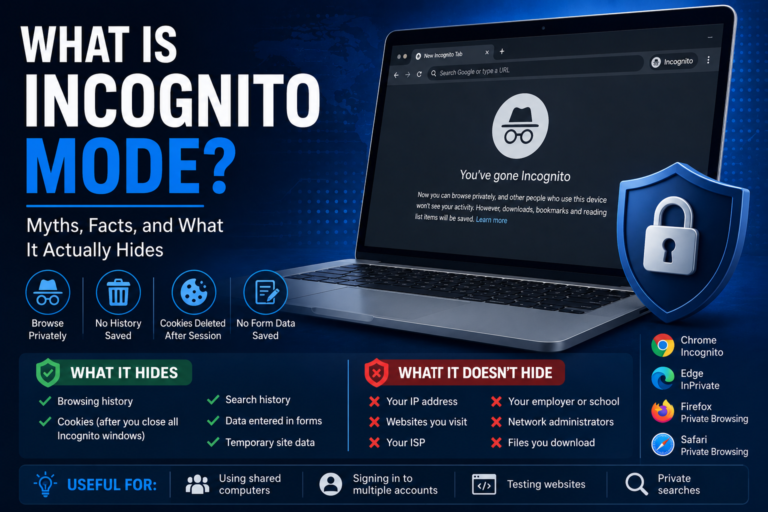
During this session, your browser generally does not save your browsing history, cookies after the session ends, search history, or information entered into forms. Once you close all Incognito windows, most temporary browsing data from that session is deleted from your device.
Although different browsers use different names, the feature works in a similar way.
- Google Chrome: Incognito Mode
- Microsoft Edge: InPrivate Browsing
- Mozilla Firefox: Private Browsing
- Safari: Private Browsing
How Does Incognito Mode Work?
Normally, your browser stores information every time you visit a website. This includes your browsing history, cookies, cached images, and other temporary files that help websites load faster and remember your preferences.
When you browse in Incognito Mode, the browser temporarily stores only the information needed to keep your current session running. After you close every Incognito window, most of this temporary data is automatically removed.
This allows you to browse without leaving the usual browsing history on your own device.
What Does Incognito Mode Hide?
Incognito Mode helps protect your privacy from other people who use the same computer or device. It prevents certain types of browsing data from being stored after your session ends.
In most browsers, Incognito Mode typically does the following:
- Does not save browsing history.
- Deletes session cookies when all private windows are closed.
- Does not keep search history within the browser.
- Removes temporary website data after the session.
- Does not save information entered into forms.
For example, if you log into an online account using Incognito Mode on a shared computer and close all private windows afterward, the browser usually won’t remember that login session the next time someone opens it.
What Incognito Mode Does Not Hide
This is where many misconceptions begin. While Incognito Mode protects your local privacy, it does not make you anonymous online.
Your browsing activity may still be visible to:
- Your internet service provider (ISP).
- Your employer if you’re using a work network.
- Your school or university network administrator.
- The websites you visit.
- Search engines if you’re signed into an account.
- Online services that track your activity after you log in.
If you sign in to a website while using Incognito Mode, that website still knows you’re logged in. Private browsing only changes what your browser stores locally—it doesn’t hide your identity from the service you’re using.
Common Myths About Incognito Mode
Myth 1: Incognito Mode Makes You Anonymous
This is false. Incognito Mode does not hide your IP address or encrypt your internet traffic. Websites, your ISP, and network administrators can still see your connection.
Myth 2: Incognito Mode Protects Against Viruses
Private browsing does not provide antivirus protection. You can still download malicious files or visit unsafe websites while using Incognito Mode.
Myth 3: Websites Can’t Track You
Some tracking methods are limited because cookies are deleted after your session, but websites can still identify you through account logins, browser fingerprinting, IP addresses, and other techniques.
When Should You Use Incognito Mode?
Although it isn’t an anonymity tool, Incognito Mode is useful in many everyday situations.
- Signing into multiple accounts at the same time.
- Using a shared or public computer.
- Testing websites without existing cookies.
- Preventing temporary searches from appearing in your browsing history.
- Logging into an account without affecting your main browser session.
For example, a web developer might use Incognito Mode to test how a website behaves for first-time visitors without cached data or existing cookies affecting the results.
When Should You Avoid Using Incognito Mode?
Incognito Mode is useful in many situations, but it is not the right solution for every privacy concern.
You should not rely on private browsing if your goal is to:
- Hide your browsing activity from your internet service provider (ISP).
- Prevent your employer or school from monitoring network activity.
- Browse anonymously on the internet.
- Protect yourself from malware or phishing websites.
- Encrypt your internet connection.
If you need additional privacy, you may need other tools such as a trusted Virtual Private Network (VPN), encrypted DNS services, or secure browsers. Remember that each tool serves a different purpose, and none can guarantee complete anonymity online.
Incognito Mode vs Regular Browsing
Understanding the difference between normal browsing and Incognito Mode helps you decide when to use each one.
| Feature | Regular Browsing | Incognito Mode |
|---|---|---|
| Browsing history saved | Yes | No |
| Cookies kept after closing | Yes | No (session cookies are removed) |
| Autofill information saved | Yes | No |
| Bookmarks remain available | Yes | Yes |
| Downloads remain on your device | Yes | Yes |
| Files you download are deleted automatically | No | No |
One important point to remember is that downloads and bookmarks created during an Incognito session usually remain on your device unless you delete them manually.
Does Incognito Mode Make Browsing Faster?
Not necessarily. Some users notice slightly faster browsing because extensions are disabled by default in many browsers while using private browsing. However, Incognito Mode itself is not designed to improve speed.
Website performance mainly depends on your internet connection, the website’s server, and your device’s hardware.
Can Employers or Schools See Incognito Browsing?
Yes. If you’re connected to a workplace, school, or university network, the network administrator may still be able to monitor internet activity.
Incognito Mode only prevents your browser from saving local browsing history. It does not hide network traffic from organizations that manage the internet connection.
Can Your Internet Service Provider See Incognito Activity?
Yes. Your ISP can still see that your device is connecting to websites because Incognito Mode does not encrypt internet traffic.
The feature is intended to protect privacy on your local device, not from external networks or internet providers.
Does Incognito Mode Stop Advertisements?
No. Websites may still display advertisements while you’re browsing privately.
However, because cookies from previous sessions aren’t available, you may see less personalized ads or advertisements based on your current browsing session instead of your long-term browsing history.
Best Practices for Better Online Privacy
Incognito Mode works best when combined with other good security and privacy habits.
- Use strong, unique passwords for every online account.
- Enable Two-Factor Authentication (2FA) wherever available.
- Keep your browser updated.
- Avoid downloading files from unknown websites.
- Be cautious when using public Wi-Fi networks.
- Sign out of important accounts when using shared computers.
- Regularly review your browser’s privacy settings.
These simple practices provide much stronger protection than relying on private browsing alone.
Frequently Asked Questions
Does Incognito Mode hide my IP address?
No. Your IP address remains visible to websites, your ISP, and network administrators.
Are downloads deleted after closing Incognito Mode?
No. Any files you download remain on your device until you remove them manually.
Will websites remember me after I close Incognito Mode?
In most cases, session cookies are deleted after all private browsing windows are closed, so websites generally won’t remember your previous session unless you sign in again or other tracking methods are used.
Can I bookmark websites while using Incognito Mode?
Yes. Bookmarks you create are usually saved to your regular browser profile unless you delete them later.
Is Incognito Mode completely private?
No. It improves privacy on your own device by not saving local browsing history, but it does not make you anonymous online or hide your activity from websites, employers, schools, or internet service providers.
Conclusion
Incognito Mode is a useful browser feature that helps protect your privacy on your own device by preventing your browser from saving browsing history, cookies after the session ends, and other temporary data. It’s ideal for using shared computers, signing into multiple accounts, or keeping certain browsing sessions separate from your regular activity.
However, Incognito Mode is often misunderstood. It does not hide your IP address, encrypt your internet traffic, or prevent websites, employers, schools, or internet service providers from seeing your online activity.
If you’re looking for stronger online privacy, think of Incognito Mode as just one tool rather than a complete privacy solution. Understanding what it can and cannot do will help you use it more effectively while making informed decisions about your online security.