Knowing how to clear DNS cache can help resolve website loading problems, fix outdated DNS records, and troubleshoot internet connectivity issues. When your device stores old DNS information, it may continue trying to connect to an outdated server even after a website has changed its IP address.
Fortunately, clearing the DNS cache is quick, safe, and built into every major operating system. Whether you’re using Windows, macOS, or Linux, refreshing the DNS cache often solves common browsing problems without changing your internet connection.
This guide explains what DNS cache is, why it exists, when you should clear it, and how to do it safely.
What Is DNS Cache?
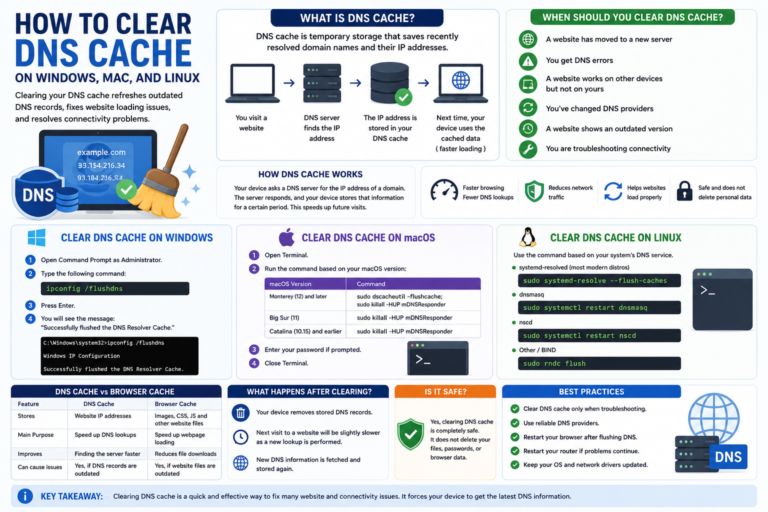
DNS cache is temporary storage that saves recently resolved domain names and their corresponding IP addresses on your device.
Instead of asking a DNS server for the IP address every time you visit the same website, your computer checks the local DNS cache first. If a valid record exists, your browser connects immediately, reducing lookup time.
This process makes websites load faster while reducing unnecessary DNS requests.
Why Does DNS Cache Exist?
Every website has an IP address, but people prefer using domain names because they are much easier to remember.
Without DNS caching, your computer would contact a DNS server every time you visited a website. By storing recent lookups locally, your device speeds up browsing and reduces network traffic.
In most situations, DNS caching works automatically without any user interaction.
When Should You Clear DNS Cache?
Although DNS cache improves browsing performance, outdated entries can occasionally create problems.
You may want to clear the DNS cache if:
- A website has recently changed servers.
- You receive DNS-related errors.
- A website loads on another device but not yours.
- You’re troubleshooting internet connectivity.
- You’ve changed DNS providers.
- A website displays an outdated version.
Clearing the DNS cache forces your operating system to request fresh DNS information the next time you visit a website.
Is It Safe to Clear DNS Cache?
Yes. Clearing the DNS cache is a normal troubleshooting step and does not delete personal files, browser history, passwords, or bookmarks.
The only noticeable effect is that your computer must perform new DNS lookups the next time you visit websites you’ve accessed before.
How to Clear DNS Cache on Windows
Windows includes a built-in command for clearing the local DNS cache.
- Open Command Prompt as Administrator.
- Type the appropriate DNS flush command.
- Press Enter.
- Wait for the confirmation message.
Once completed, Windows removes the stored DNS entries and begins building a new cache as you browse.
How to Clear DNS Cache on macOS
macOS also allows you to flush the DNS cache using Terminal.
- Open Terminal.
- Run the appropriate DNS cache flush command for your macOS version.
- Enter your administrator password if prompted.
- Close Terminal after the command finishes.
Apple occasionally changes the required command between macOS releases, so always use the command that matches your installed version.
How to Clear DNS Cache on Linux
Linux distributions handle DNS caching differently because they may use different DNS services.
Depending on your distribution, the cache may be managed by:
- systemd-resolved
- dnsmasq
- nscd
- Other DNS resolver services
The exact command varies depending on the service running on your system.
What Happens After You Clear DNS Cache?
After you clear the DNS cache, your computer removes the locally stored DNS records. The next time you visit a website, your device performs a new DNS lookup to retrieve the latest IP address.
The first visit to a website may take slightly longer because your device must contact a DNS server again. After that, the new information is stored in the cache and future visits return to normal speed.
Will Clearing DNS Cache Improve Internet Speed?
Not usually. Clearing the DNS cache does not increase your internet bandwidth or make downloads faster.
However, it can improve your browsing experience if outdated DNS records are causing delays or preventing your browser from reaching the correct website.
If your internet connection feels slow all the time, the cause is more likely to be your network, router, internet service provider, or the website itself.
DNS Cache vs Browser Cache
People often confuse DNS cache with browser cache because both store temporary information. In reality, they serve completely different purposes.
| Feature | DNS Cache | Browser Cache |
|---|---|---|
| Stores | Website IP addresses | Images, CSS, JavaScript, fonts, and other website files |
| Main Purpose | Speed up DNS lookups | Speed up webpage loading |
| Improves Website Loading | Helps find the server faster | Reduces file downloads |
| Can Cause Website Issues | Yes, if DNS records are outdated | Yes, if cached website files are outdated |
If you’re experiencing website loading problems, identifying whether the issue is related to DNS or browser cache can save time during troubleshooting.
Common DNS Cache Problems
Website Loads an Old Version
If a website has recently moved to a new server, your device may continue using an older cached IP address.
Flushing the DNS cache forces your system to request the updated address.
“DNS Server Not Responding” Errors
Although these errors are not always caused by the local DNS cache, clearing it is one of the first troubleshooting steps worth trying.
Website Works on Other Devices
If a website opens normally on another computer or phone connected to the same network, your local DNS cache could contain outdated information.
Best Practices for DNS Management
You don’t need to clear your DNS cache regularly. Most users only need to do it while troubleshooting network or website problems.
- Keep your operating system updated.
- Use reliable DNS providers.
- Restart your browser after flushing the DNS cache.
- Restart your router if connection problems continue.
- Avoid changing DNS settings unless necessary.
- Verify that websites are working before making additional changes.
These simple practices help maintain a reliable internet connection while reducing unnecessary troubleshooting.
Frequently Asked Questions
How often should I clear DNS cache?
There is no fixed schedule. Most people only clear the DNS cache when troubleshooting website or network issues.
Will clearing DNS cache delete my browsing history?
No. DNS cache is separate from your browser history. Clearing it does not remove bookmarks, passwords, cookies, or browsing history.
Can clearing DNS cache fix website loading problems?
Yes. If outdated DNS records are causing the issue, clearing the cache often resolves website loading problems by forcing your device to retrieve updated DNS information.
Does restarting my computer clear DNS cache?
In some cases, restarting your device may clear parts of the DNS cache depending on your operating system and configuration. However, using the built-in DNS flush method provides a more reliable way to refresh cached DNS records.
Conclusion
Learning how to clear DNS cache is a useful troubleshooting skill for anyone who regularly uses the internet. DNS caching helps websites load faster by storing recently resolved IP addresses, but outdated records can occasionally prevent websites from loading correctly.
Fortunately, clearing the DNS cache is quick, safe, and supported by all major operating systems. Whether you’re fixing connection issues, changing DNS providers, or troubleshooting website problems, refreshing the DNS cache can often resolve the issue in just a few minutes.
Keep in mind that operating systems and DNS services evolve over time, so commands and settings may vary depending on your software version. Always refer to the latest documentation for version-specific instructions when necessary.