Cookies in a web browser help websites remember information about your visit. They make everyday browsing more convenient by keeping you signed in, remembering your preferences, and storing items in your shopping cart.
Although browser cookies are often associated with online tracking, they also play an important role in how modern websites function. Without cookies, many websites would require you to log in repeatedly or lose your preferences every time you opened a new page.
This guide explains what browser cookies are, how they work, the different types of cookies, their benefits, privacy concerns, and how you can manage them.
What Are Cookies in a Web Browser?
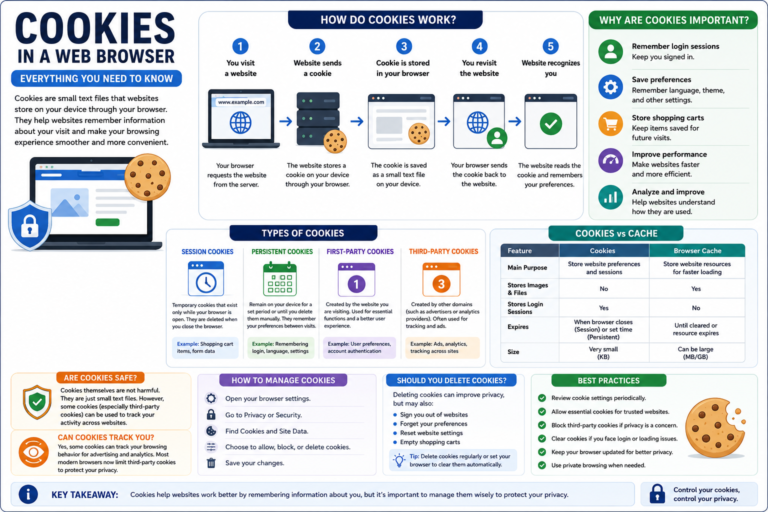
Browser cookies are small text files that websites store on your computer, smartphone, or tablet through your web browser.
These files contain small pieces of information that help websites recognize your device during future visits. Cookies do not store entire webpages or applications. Instead, they usually contain identifiers and preference data that improve your browsing experience.
For example, if you sign in to an online shopping website and choose the option to stay signed in, a cookie helps the website remember your session the next time you visit.
Why Are Browser Cookies Important?
Without cookies, websites would treat every page you visit as a completely new session.
Cookies allow websites to:
- Remember your login session.
- Save language preferences.
- Store shopping cart items.
- Remember website settings.
- Improve website performance.
Many modern websites rely on cookies to deliver a smooth and personalized browsing experience.
How Do Browser Cookies Work?
When you visit a website for the first time, the website may ask your browser to store one or more cookies.
On future visits, your browser sends those cookies back to the website. This allows the website to recognize your previous interactions and provide a more consistent experience.
The entire process usually happens automatically without requiring any action from the user.
Types of Browser Cookies
Session Cookies
Session cookies exist only while your browser remains open.
They help websites remember temporary information such as items you’ve added to your shopping cart. Once you close your browser, session cookies are typically deleted automatically.
Persistent Cookies
Persistent cookies remain on your device for a specified period or until you delete them manually.
These cookies remember settings such as language preferences, login information, or website customization between visits.
First-Party Cookies
First-party cookies are created directly by the website you’re visiting.
They are commonly used for essential website functions such as authentication and user preferences.
Third-Party Cookies
Third-party cookies are created by services other than the website you’re currently visiting.
They are often associated with advertising, analytics, and embedded content. Many browsers now limit or block third-party cookies by default, and website support for them continues to evolve.
What Information Do Cookies Store?
Browser cookies typically store small pieces of website-related information rather than personal files.
Depending on the website, cookies may store:
- Session identifiers.
- Language preferences.
- Theme settings.
- Shopping cart contents.
- User preferences.
- Authentication tokens.
Cookies generally do not contain your personal documents, photos, or software installed on your device.
Are Browser Cookies Safe?
In most cases, browser cookies themselves are not harmful. They are simply small text files created by websites.
However, cookies can raise privacy concerns because they may be used to recognize returning visitors and, in some cases, support advertising or analytics activities.
Modern browsers provide controls that allow users to review, block, or delete cookies according to their privacy preferences.
Cookies vs Cache: What’s the Difference?
Cookies and browser cache are often confused because both are stored by your browser. However, they serve very different purposes.
| Feature | Cookies | Browser Cache |
|---|---|---|
| Main Purpose | Store website preferences and sessions | Store website resources for faster loading |
| Stores Images | No | Yes |
| Stores Login Sessions | Yes | No |
| Improves Loading Speed | Indirectly | Yes |
How to Manage Browser Cookies
Every modern web browser allows you to control how cookies are stored and used. You can view existing cookies, delete them, block certain types, or allow cookies only from trusted websites.
Although the exact steps vary between browsers, the general process is similar.
- Open your browser’s settings.
- Go to the Privacy or Security section.
- Locate the Cookies or Site Data settings.
- Review your available options.
- Choose whether to allow, block, or delete cookies.
Browser menus may change over time as new versions are released, so the exact names of settings can differ slightly.
Should You Delete Browser Cookies?
Deleting cookies can improve your privacy in some situations, but it also has trade-offs.
When you remove cookies, websites may:
- Sign you out of your accounts.
- Forget your language preferences.
- Reset website settings.
- Empty your shopping cart.
For many users, deleting cookies occasionally is enough. Others prefer to remove cookies regularly or configure their browser to clear them automatically when it closes.
Can Cookies Track You?
Cookies can recognize your browser during future visits to the same website. This helps websites remember your preferences and improve your experience.
Some cookies, particularly certain third-party cookies, have historically been used to support advertising and measure browsing behavior across multiple websites.
Many modern browsers now restrict third-party cookies by default, and privacy regulations have encouraged websites to provide users with more control over cookie preferences.
Do Cookies Slow Down Your Browser?
In most cases, cookies have little impact on browsing performance because they are very small text files.
If your browser feels slow, the cause is more likely to be factors such as a large cache, numerous browser extensions, limited device storage, or insufficient memory rather than cookies themselves.
What Happens If You Block All Cookies?
Most browsers allow you to block cookies completely, but doing so may affect how websites function.
You might experience issues such as:
- Frequent login requests.
- Shopping carts not remembering products.
- Lost website preferences.
- Reduced personalization.
- Some websites not working correctly.
Instead of blocking every cookie, many users choose to block only third-party cookies while allowing essential first-party cookies that help websites operate normally.
Best Practices for Managing Cookies
You don’t need to delete cookies constantly. A balanced approach offers both convenience and privacy.
- Review cookie settings periodically.
- Allow essential cookies for trusted websites.
- Clear cookies if you experience website login problems.
- Be cautious when accepting unnecessary tracking cookies.
- Keep your browser updated to receive the latest privacy features.
- Use private browsing mode when appropriate on shared devices.
Common Myths About Browser Cookies
Myth 1: Cookies Are Viruses
This is false. Cookies are small text files and cannot execute programs or infect your computer like malware.
Myth 2: All Cookies Track Everything You Do
Many cookies exist solely to support essential website functions, such as keeping you signed in or remembering your preferences.
Myth 3: Deleting Cookies Makes You Anonymous
Removing cookies improves privacy in some situations, but it does not make you anonymous online. Websites and online services may still use other methods to recognize returning users.
Frequently Asked Questions
Do browser cookies store passwords?
Generally, cookies do not store your actual passwords. Websites typically use session identifiers or authentication tokens to keep you signed in securely.
Can I block only third-party cookies?
Yes. Most modern browsers provide an option to block third-party cookies while allowing first-party cookies that help websites function properly.
Should I accept every cookie request?
Not necessarily. Many websites allow you to choose which categories of cookies to accept. Review the available options and select the preferences that match your privacy needs.
Will deleting cookies free up storage?
Cookies use very little storage space. Deleting them may free a small amount of storage, but it is unlikely to make a noticeable difference on modern devices.
Conclusion
Cookies in a web browser play an important role in making websites faster, more convenient, and easier to use. They help remember your login sessions, preferences, and shopping carts while improving the overall browsing experience.
Although cookies can raise privacy concerns, modern browsers provide flexible controls that let you manage how they are used. Understanding the difference between essential cookies and tracking cookies helps you make informed decisions about your online privacy.
As browsers and privacy regulations continue to evolve, cookie handling may change over time. Reviewing your browser’s privacy settings periodically can help you balance convenience with greater control over your personal data.